For modern podiatry and chiropody clinics, online booking is no longer a “nice to have” — patients expect to be able to book appointments quickly, at any time, without picking up the phone.
If your clinic already uses a practice management system like Jane App or Cliniko, the good news is that both platforms provide booking widgets that can be added directly to your WordPress website.
In this guide, we’ll show you:
- Which booking options Jane App and Cliniko offer
- How to add booking widgets using Gutenberg or Elementor
- Where to find the official help documentation for each system
This guide is written specifically with podiatrists and chiropodists in mind, but the same steps apply to most healthcare clinics.
What You’ll Need Before You Start
To follow this guide, you’ll need:
- An active Jane App or Cliniko account
- Admin or full access to your clinic management system
- A WordPress website using either Gutenberg (Block Editor) or a page builder such as Elementor
- The booking embed code or booking URL from your system
You won’t need to install any additional plugins.
Adding Online Booking with Jane App
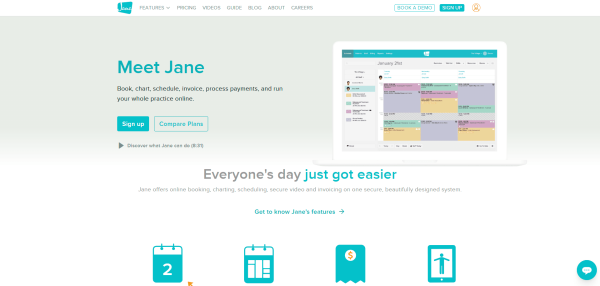
Jane App allows you to create “Book Online” buttons that link patients directly to your hosted booking page. These buttons can be embedded using a small piece of HTML code or added as a normal link.
This approach works well if you want:
- A clear Call to Action (“Book an Appointment”)
- A lightweight solution that doesn’t slow down your website
- Patients redirected to Jane’s secure booking interface
How to Get the Jane App Booking Code
- Log in to your Jane App account
- Go to Settings → Branding
- Scroll to the Book Online Buttons section
- Choose your preferred button style
- Copy the provided HTML embed code
Jane also provides a plain booking URL, which is useful if you prefer to link from a standard button instead of embedding HTML
Official Jane App Help Guide:
Adding Online Booking with Cliniko

Cliniko offers a more immersive option: a fully embedded booking experience. This allows patients to select appointments and practitioners without leaving your website.
This is ideal if you want:
- A seamless patient journey
- Fewer clicks before booking
- A dedicated “Book Online” page on your site
How to Get the Cliniko Embed Code
- Log in to Cliniko (admin access required)
- Go to Settings → Online bookings
- Locate Code to embed in your website
- Copy the embed code provided
Official Cliniko Help Guide:
How to Add Booking Widgets in WordPress
Once you’ve copied your embed code, adding it to WordPress is straightforward.
Option A: Using Gutenberg (WordPress Block Editor)
- Edit the page or post where you want bookings to appear
- Click Add Block (+)
- Search for Custom HTML
- Paste your Jane or Cliniko embed code
- Preview and Publish
If you’re only using a booking link (rather than embed code), you can use a Button block and link it to your booking URL.
Option B: Using Elementor
If your site uses Elementor:
- Edit your page with Elementor
- Drag the HTML widget into your layout
- Paste the booking embed code
- Click Update
You can control spacing, alignment, and visibility (desktop/mobile) directly within Elementor.
Best Practices for Clinic Websites
Always Test on Mobile
Many patients will book from their phone. Check spacing, scrolling, and button sizes on mobile devices.
Keep Performance in Mind
Embedded booking systems can slightly affect page speed. For best results, consider placing them on a dedicated “Book Online” page rather than your homepage.
Make Booking Easy to Find
Link to your booking page from:
- Your main navigation
- A “Book Now” button in the header
- Your contact page
Final Thoughts
Online booking should work for your clinic – not create extra friction or confusion for patients. Whether you use Jane App or Cliniko, integrating online booking properly into your WordPress website can significantly increase completed bookings, reduce reception workload, and give patients a smoother experience from first click to confirmed appointment.
If you’re not sure which booking approach is best for your clinic, or you’d like your booking pages designed to convert more visitors into booked appointments, we can help.
Need help setting this up properly?
We regularly work with podiatrists and chiropodists to integrate booking systems, optimise page layouts, and ensure booking widgets work seamlessly on mobile and desktop.
Get in touch to discuss improving your clinic website or booking flow and turn more website visits into confirmed appointments.